

CultiApp makes it easy to take full control of your system. Simple installation and user-friendly instructions guide you through the setup, allowing you to quickly customize lighting, ventilation, and watering exactly as you want.
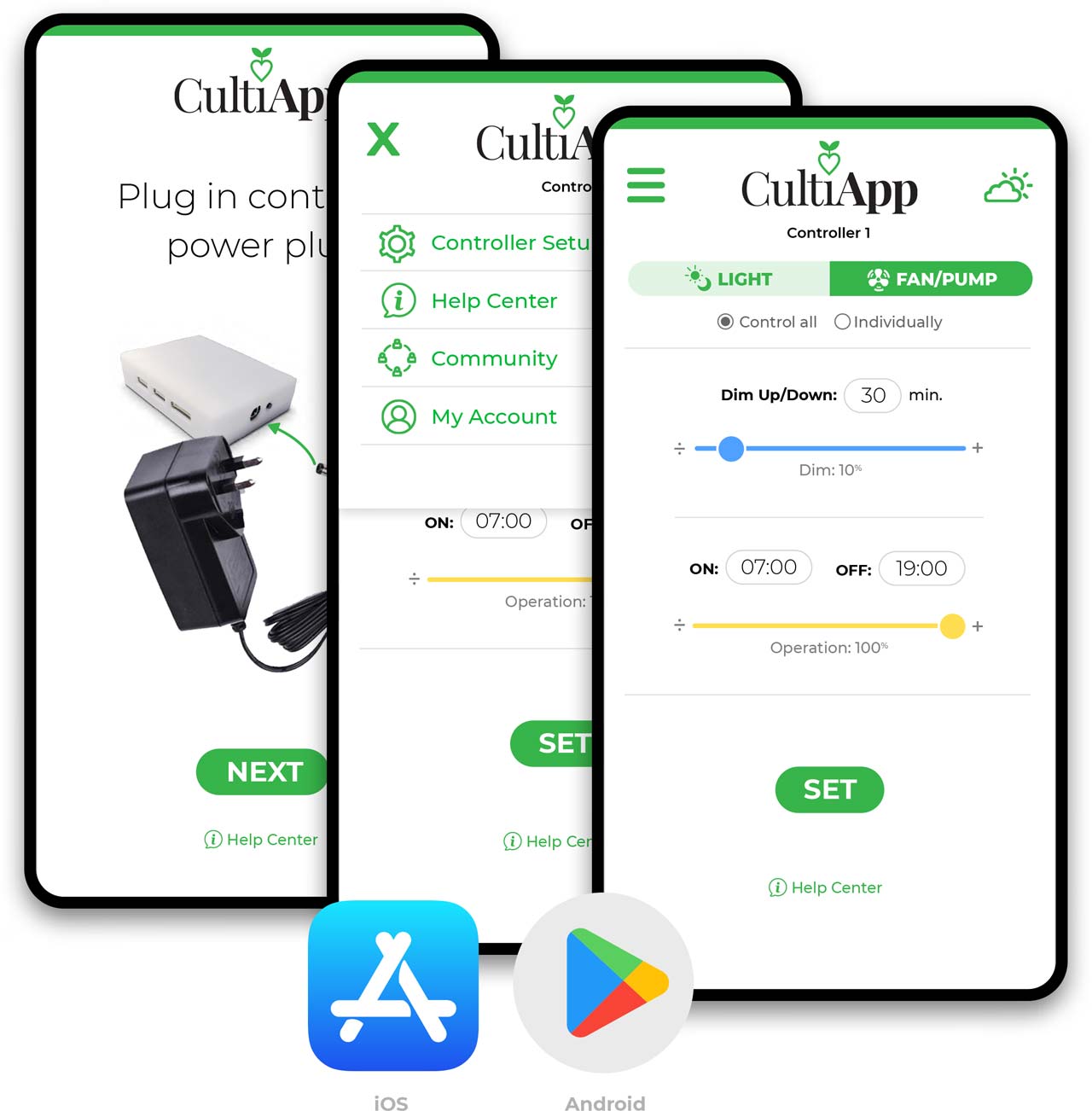
Please update CultiApp in the App Store or Google Play and update the firmware to version 1.7 under “Controller Setup”. Operating status »
1
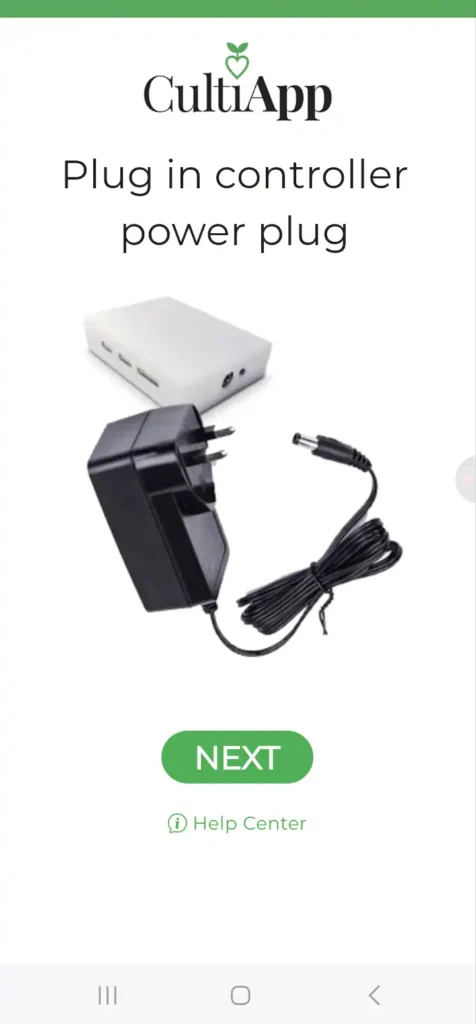
Plug in controller power plug – make sure controller status light flashes green.
2
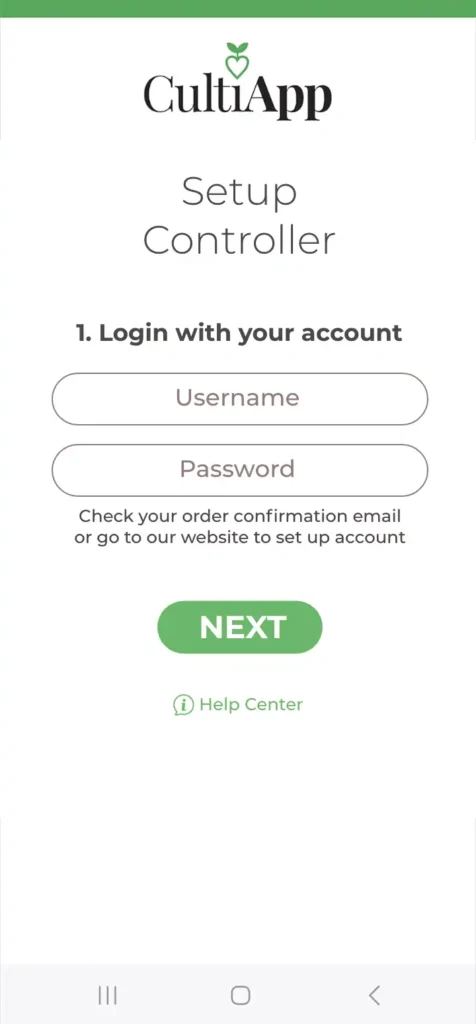
Login with Username and Password you received with your order confirmation.
3
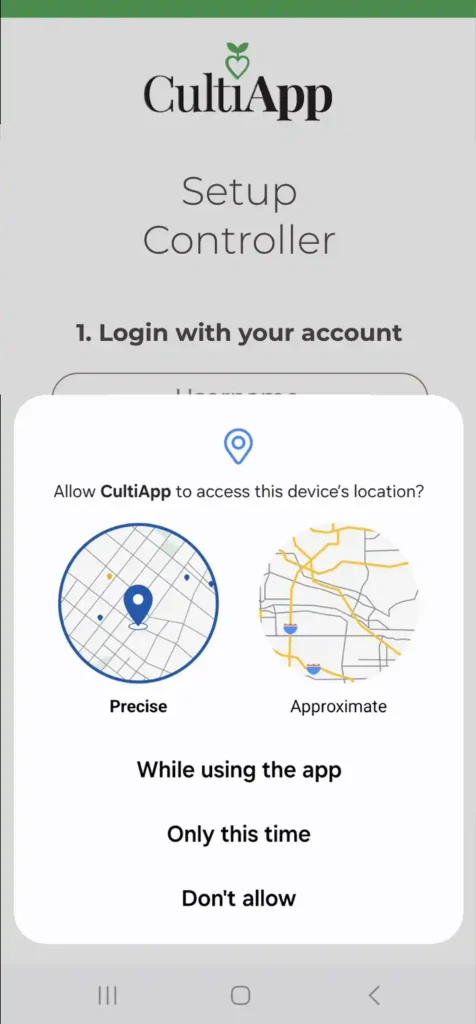
Accept location services for your device’s wifi connection.
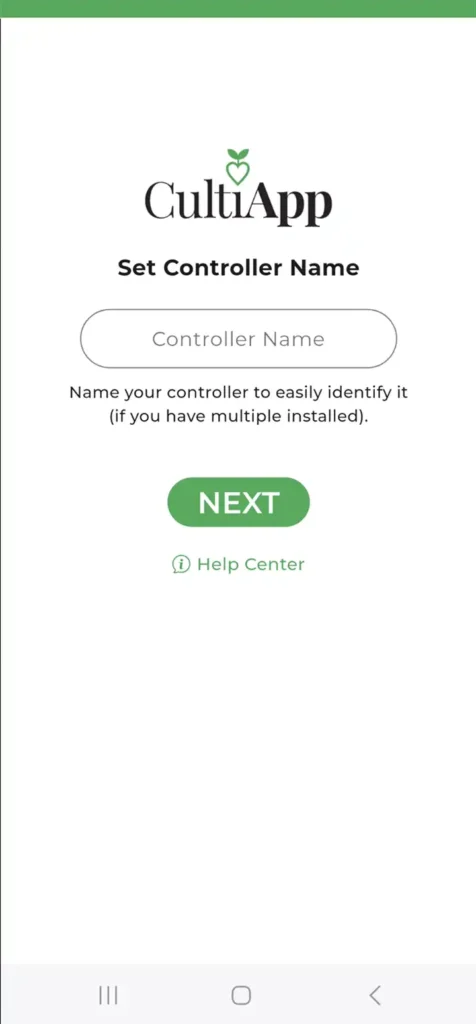
4
Enter the name for your controller (you can setup multiple controllers).
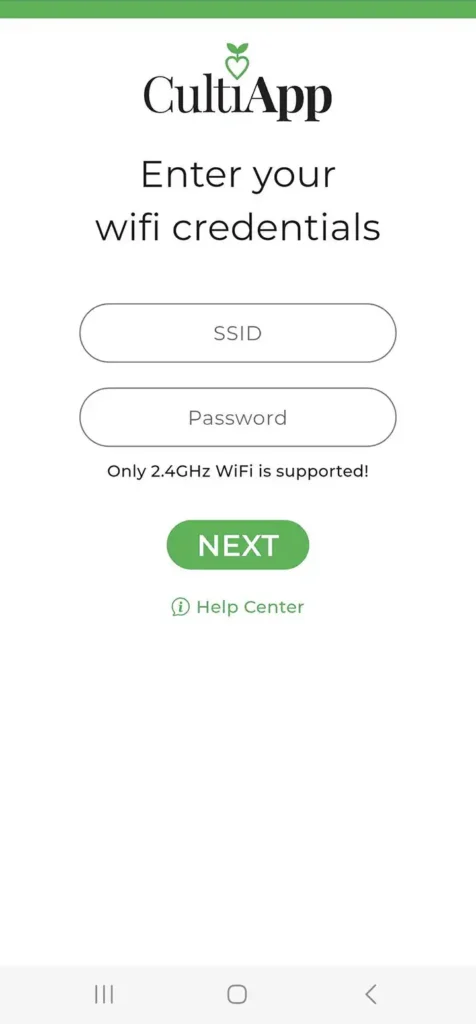
5
Enter your wifi Password
(“Unknown Wifi” restart app and allow location service).
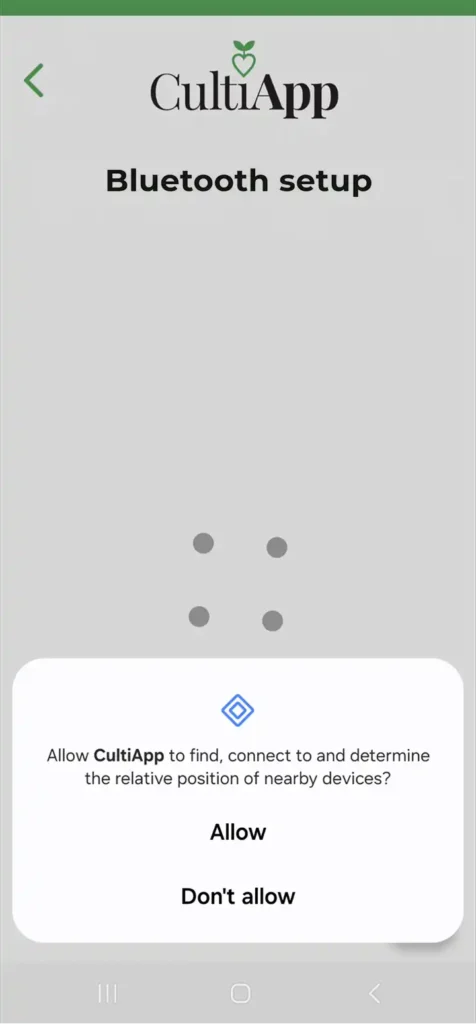
6
Allow bluetooth connection (Device Bluetooth must be on).
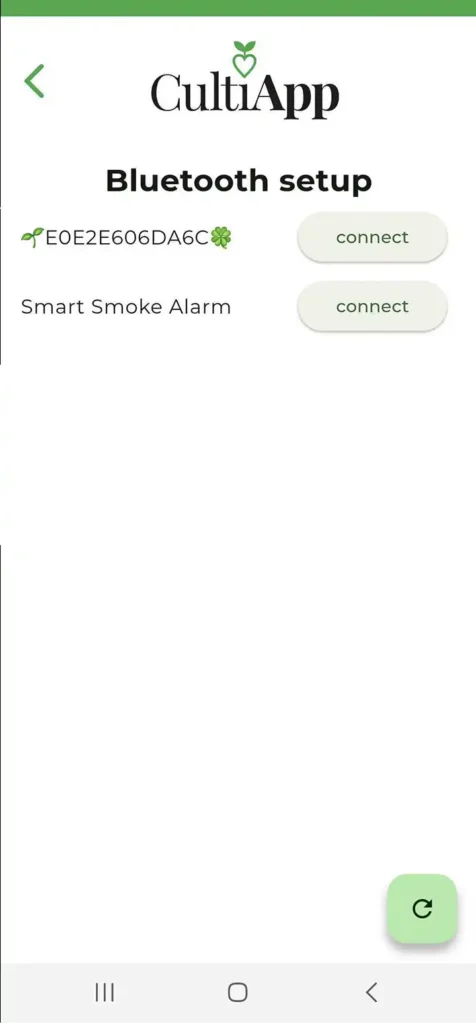
7
Choose Connect on the name with 🌱🍀. Plug in one controller at a time if you have multiple.
8
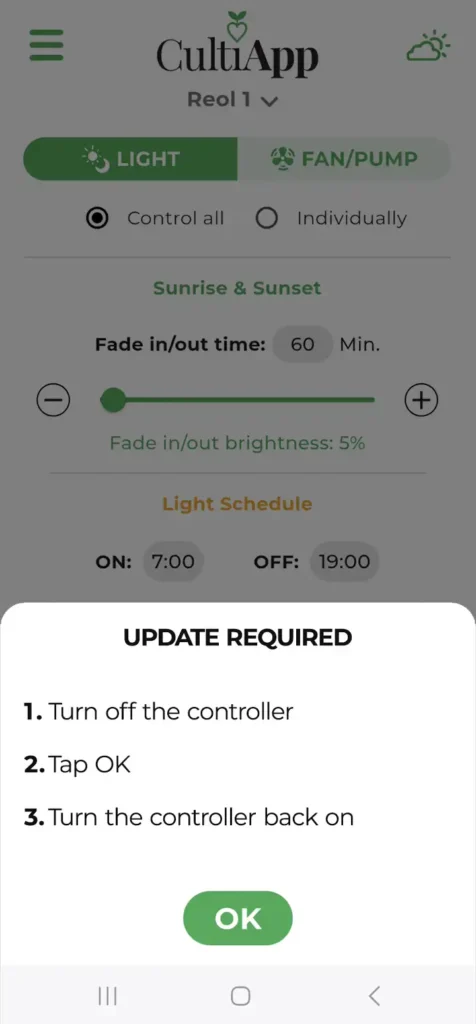
App says update required:
1. Turn off controller
2. Click OK
3. Turn controller ON
9
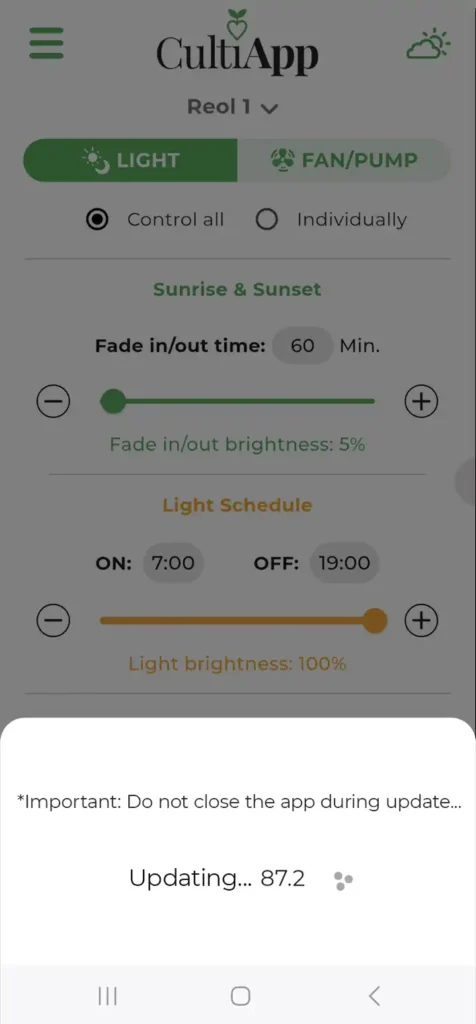
Please do not close the app
during update!
10
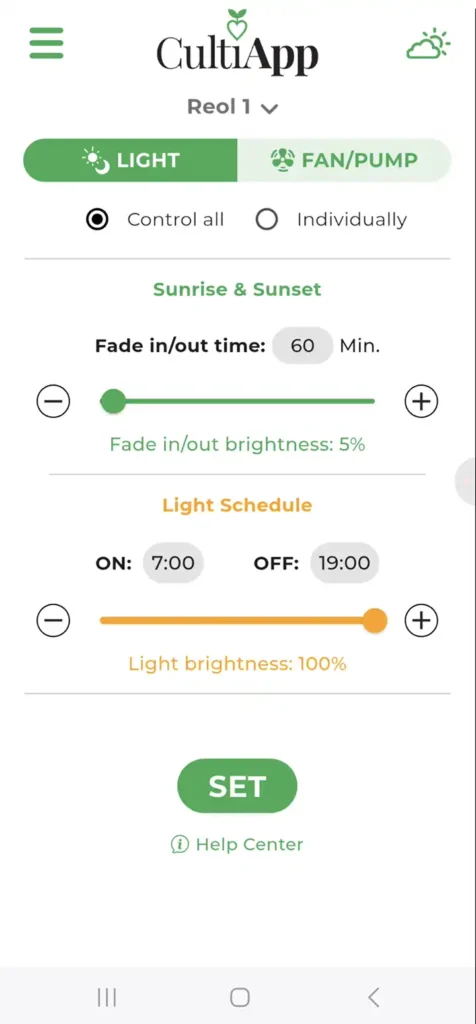
Let the magic begin!
Check Operation or Troubleshooting if you need assistance.
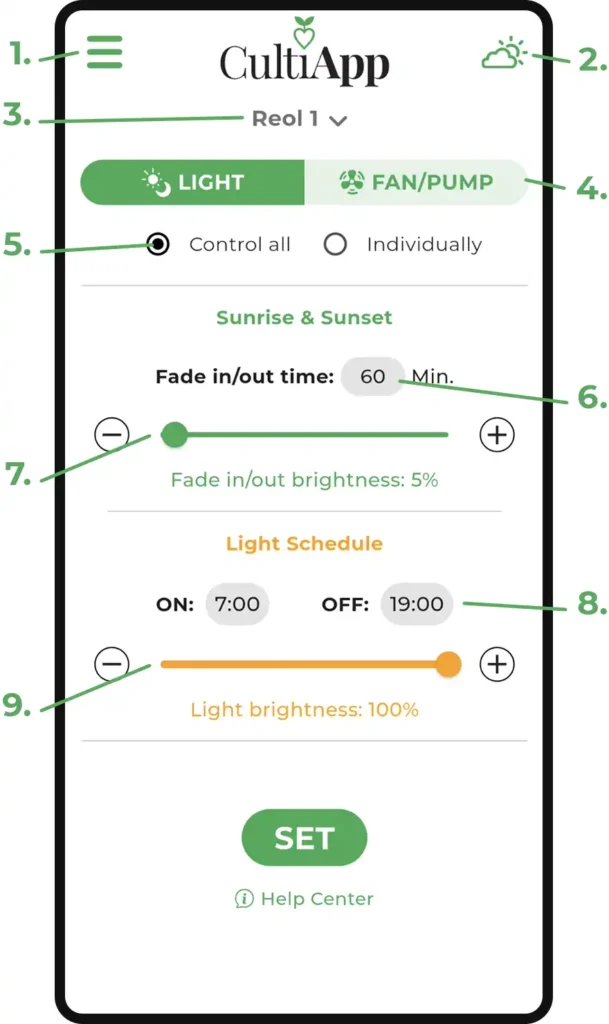
Menu – Access Controller Settings, Help Center, and My Account.
Sky Icon – Temporarily dims lights to 10% (for plant care).
Controller Name – View and switch between installed controllers.
Light / Fan-Pump – Toggle between light or fan/pump control.
Control Mode – Choose “Individually” to adjust each port separately.
Fade Time – Set how long lights take to fade in/out (in minutes).
Fade Brightness – Minimum brightness during fade in/out (e.g. 5%).
Light Schedule – Set ON/OFF times for daily light cycle.
Light Brightness – Overall brightness after fade-in is complete.
Tap SET to save changes!
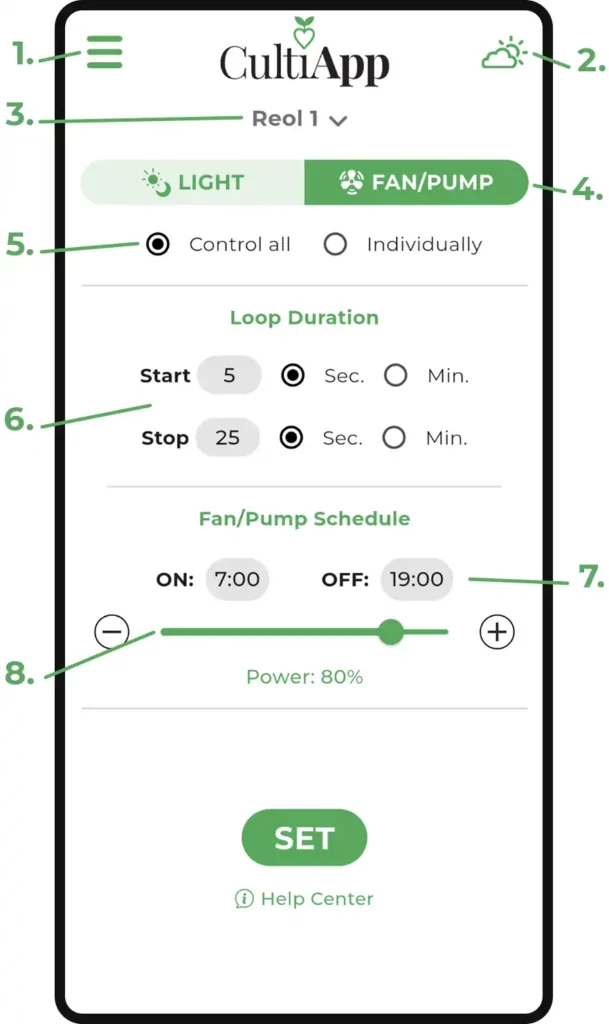
Menu – Access Controller Settings, Help Center, and My Account.
Sky Icon – Temporarily dims lights to 10% (for plant care).
Controller Name – View and switch between installed controllers.
Light / Fan-Pump – Toggle between light or fan/pump control.
Control Mode – Choose “Individually” to adjust each port separately.
Loop Duration –
• Start: Time fan/pump stays ON per loop.
• Stop: Time fan/pump stays OFF per loop.
Fan/Pump Schedule – Set daily ON/OFF time.
Tip: Use ON: 00:00 and OFF: 23:59 for continuous loop.
Power Setting – Adjust fan/pump power (PWM/DC).
Tap SET to save changes!
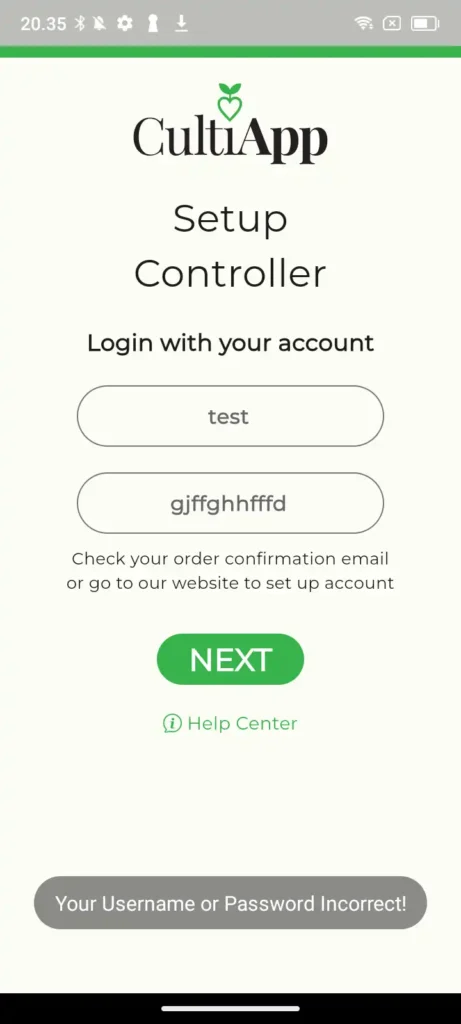
Username or Password Incorrect!
Check your order confirmation email where you received your username and password.
Your username is always your email address unless you have changed it. Change your password here.
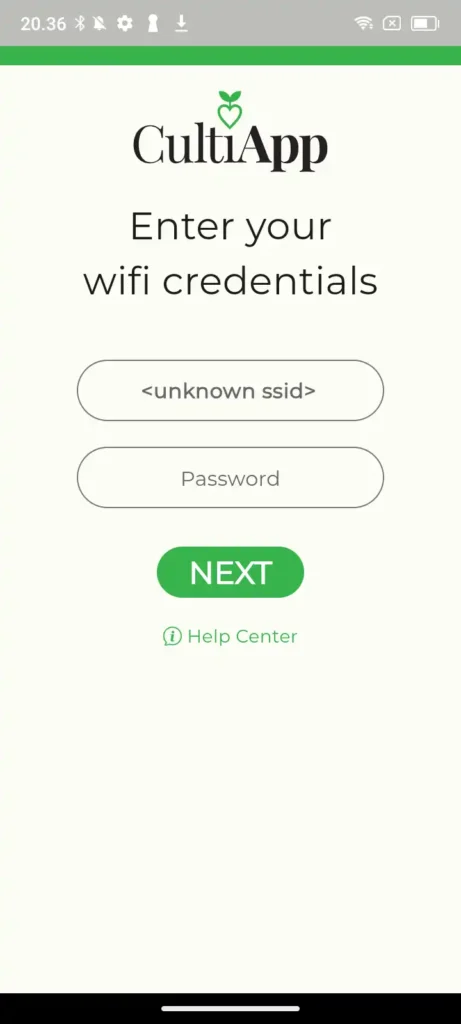
Unkown ssid
Restart the app and make sure to “Allow CultiApp to access device location while using the app”.
Make sure that your WiFi is a 2G network – Read more.
Please contact your WiFi provider if you cannot solve the problem or try creating a WiFi Hotspot with another device.
Reset controller, delete app and reinstall if the problem continues.
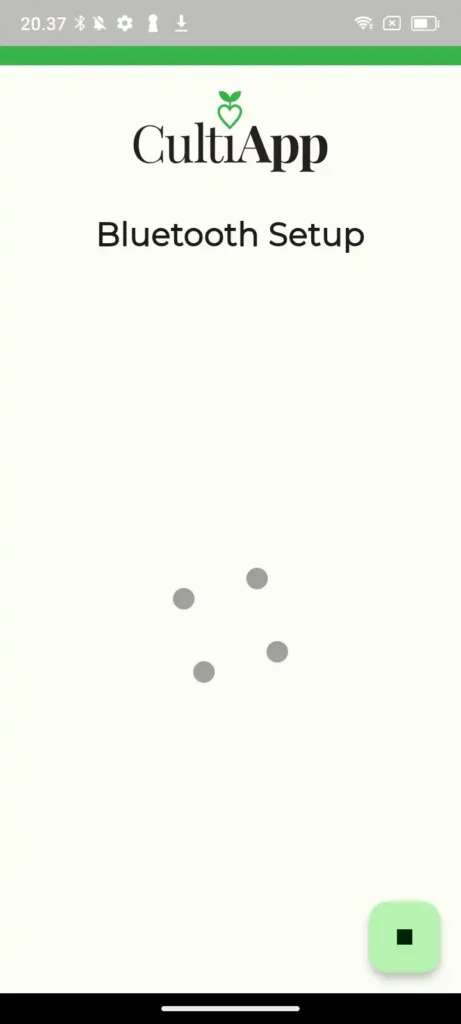
Bluetooth setup not working
Make sure that Bluetooth is activated on your device (Go to Settings, Bluetooth).
Restart the app and make sure to “Allow CultiApp to Find, Determine and Connect to nearby devices”.
Reset controller, delete and reinstall app if the problem continues.
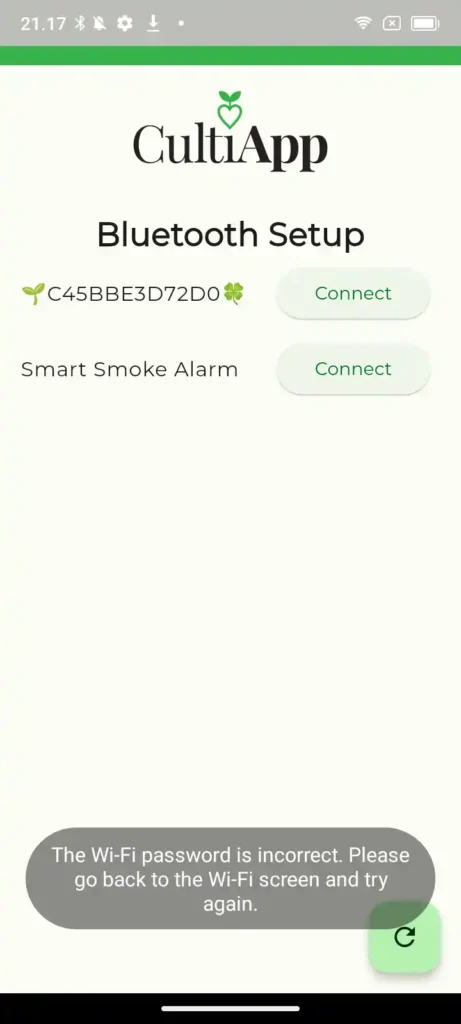
Wi-Fi password is incorrect.
Go back to wifi credentials (click on back arrow in the bottom) and make sure that your wifi and password is correct.
Please check “Unkown ssid” issue if it does not display your wifi name under wifi credentials.
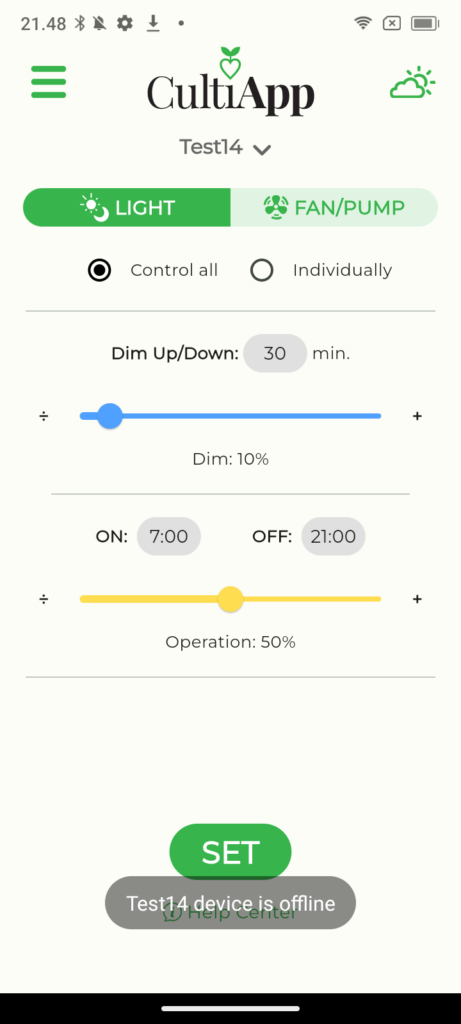
Device is offline
Try agin a couple of times sometimes the server can be delayed or restart device.
Also make sure that controller is on (LED status lights green) and is connected to app (green light not flash).
If controller light flashes green or red please reset controller and set up app agin with same username.
What happens if my WiFi or power goes out?
The controller will run according to the settings you have saved regardless of whether it has access to wifi or not. See how to use it after a power failure and without wifi in the manual.
How do I add my controller to the app?
Please check Setup on this page and follow the instructions.
How do I delete my app account?
Your account will be automatically deleted if it is not used for 12 months. If you want it deleted now, please use the form below and write “DELETE ACCOUNT” and we will give you confirmation when your account has been deleted.
The app does not respond?
FIll out the form below and we will cantact you as soon as possible
|
Uploaded
Failed
|
 |

